USM documents
You can also search for the documents coming from the USU Service Management Knowledge Manager (USM).
To search for USM documents by a specific term:
Enter a key term into the search box.
Press Enter.
The search results are listed below in the search result window.
Scroll down to the USM Documents category.
Here you can find if the search term matches some USM documents.
Select the required USM document.
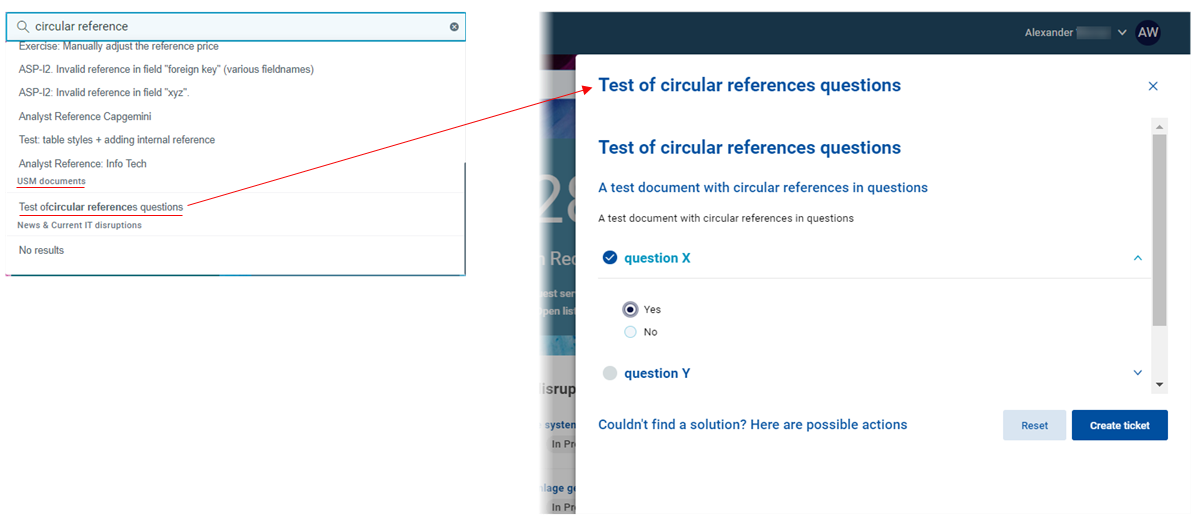
Click the document.
The corresponding USM document opens in a drawer on the right.
To create a ticked directly from the USM document:
Enter a key term into the search box.
Press Enter.
The search results are listed below in the search result window.
Scroll down to the USM Documents category.
Here you can find if the search term matches some USM documents.
Select the required USM document.
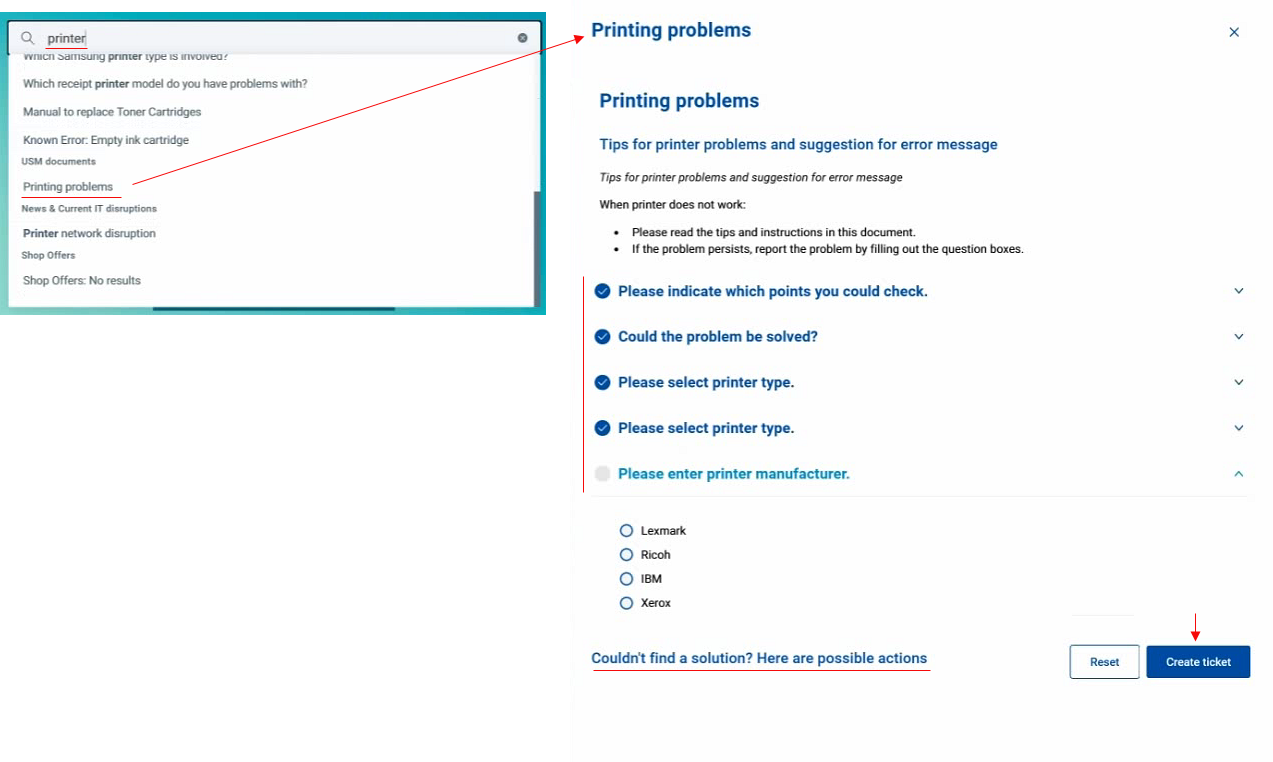
Click the document.
The corresponding active USM document opens in a drawer on the right.
The document usually contains an issue resolution dialog or a simple checklist to guide you to the solution. If you don't find the right solution, you can create a ticket directly from here.
Click Create ticket.
The Create ticket dialog opens allowing you to create a ticket immediately.
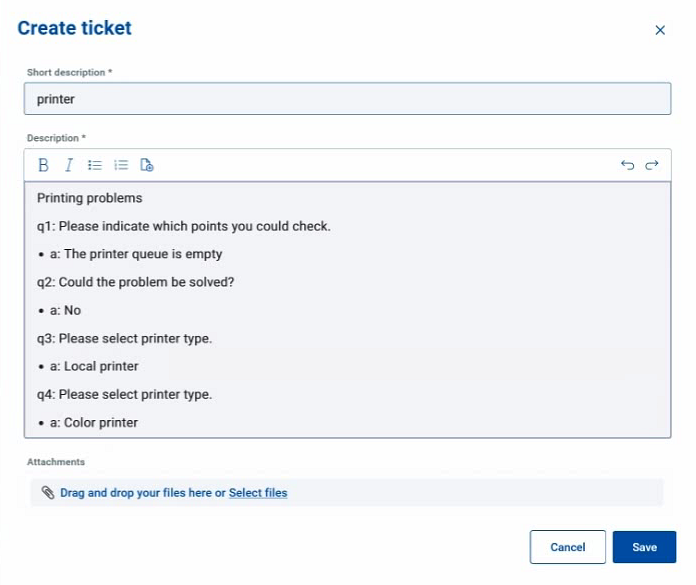
Note that not only the Short description field takes over the original search term but also all the questions and answers you have just given are transferred into the ticket Description.
Click Save.
A ticket has been created.