Filter offers
Clicking Show filter in the Offers list opens the Filter offers dialog. Use it to specify filtering of the Offers list.
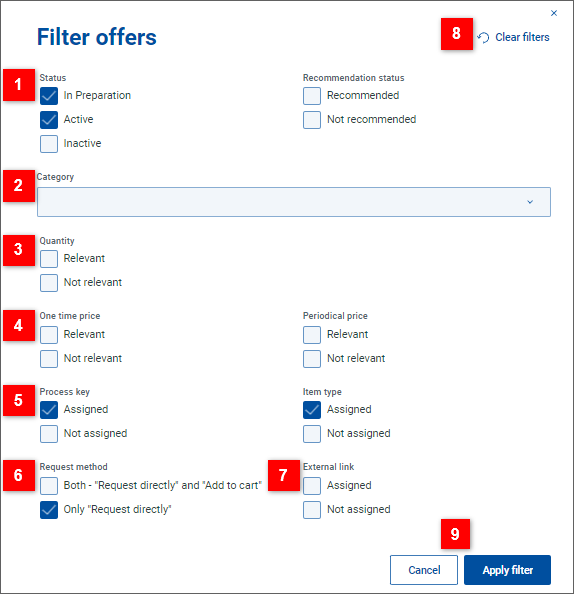
| Filter the list by offer status and recommendation status. |
| Filter the list by offer category. |
| Filter the list by quantity relevance.
See topic Set up quantity for more information on offer quantity. |
| Filter the list by price relevance.
See topic Specify price for more information on offer prices. |
| Filter the list by attributes relevant for requesting and procurement.
See topic Link to requesting and fulfillment for more information on the attributes. |
| Filter the list by request method.
See topic Specify request method for more information. |
| Filter the list by external link availability.
See the External link part of topic Add images and more info for more information. |
| Click Clear filters to clear the current filter criteria. The dialog remains open and can be used to specify new criteria. Note: To quickly clear the filter and immediately get the unfiltered list, use Clear filter or Clear all filters at the top of the offer list. |
| Click Apply filter to close the dialog and apply the specified filer criteria. Click Cancel to close the dialog without applying the filter. The filter criteria will remain the same as before opening the dialog. |


