Example 3: Multiple rules for a single target
Multiple rules can be created for a single target. In such case, individual rules are processed sequentially in the order of their position in the target's list of rules. Consequently, reordering the rules applied to a target element can have a decisive influence on the final visibility/mandatoriness outcome (as seen in example 3b below).
In this example, one an the same target is made visible by one trigger and mandatory by another trigger.
Let's have a offer registering, among other visit parameters, if the need for catering is included. The offer form behaves in the following way:
If is unchecked, no further catering-related fields are displayed.
If is checked, two catering-related fields are displayed: a check box registering if an external catering company is needed and an optional cost center attribute.
If the check box is checked, then the cost center attribute becomes mandatory.
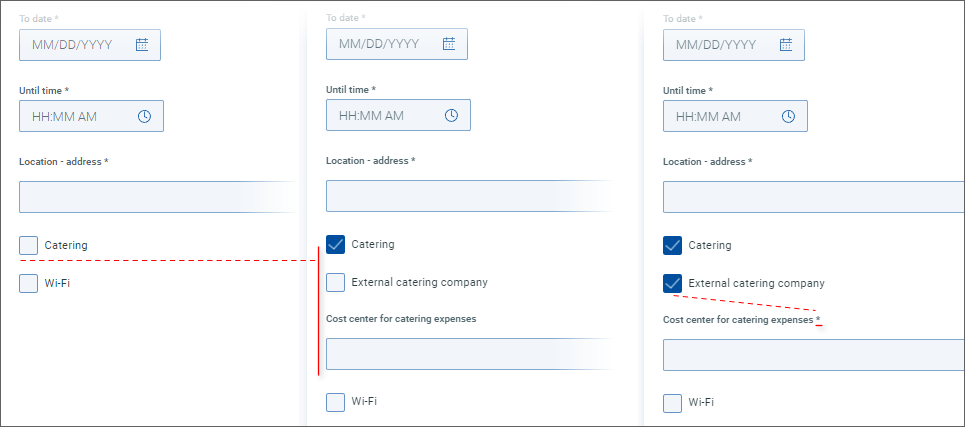
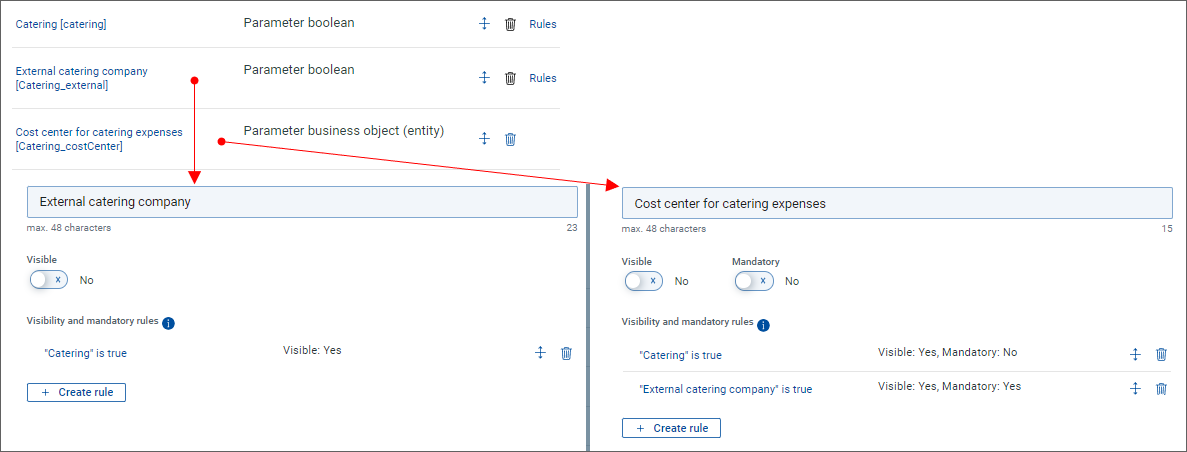
The above described behavior is achieved in the following way:
A visibility rule triggered by the check box is created for both additional catering-related attributes.
A mandatoriness rule triggered by the check box is additionally created for the cost center attribute.
See the image below for complete information.
In this example, one and the same target is made visible by one trigger and turned invisible again by another trigger.
Let's expand the previous example by by adding a check box registering if catering expenses can be covered by special Promo funds (in which case cost center coverage is not needed even in cases where it otherwise would be mandatory). The offer form might behave in the following way:
If is unchecked, no further catering-related fields are displayed.
If is checked, three catering-related fields are displayed: the external catering company check box, a check box registering special Promo funds eligibility, and the optional cost center attribute.
If the check box is checked, then the cost center attribute becomes mandatory.
If the check box is checked, then the cost center field is no longer displayed. (It is not necessary and not mandatory any more.)
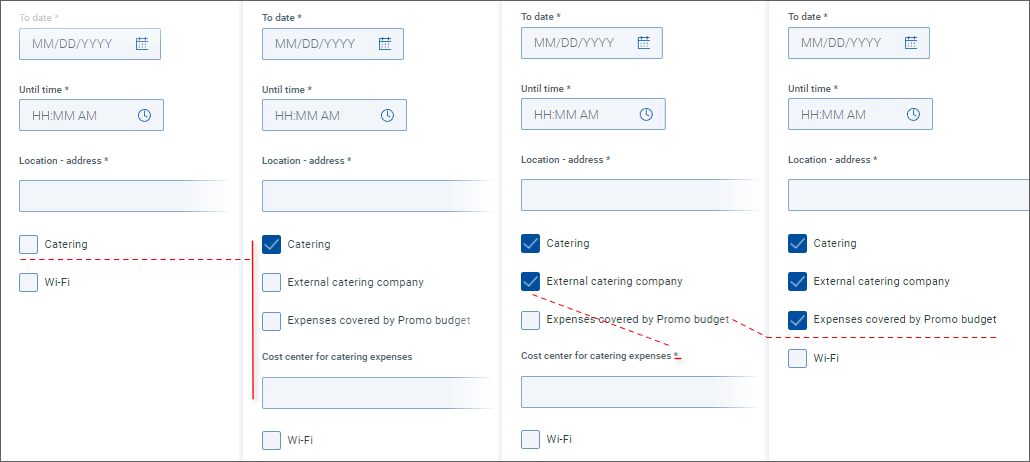
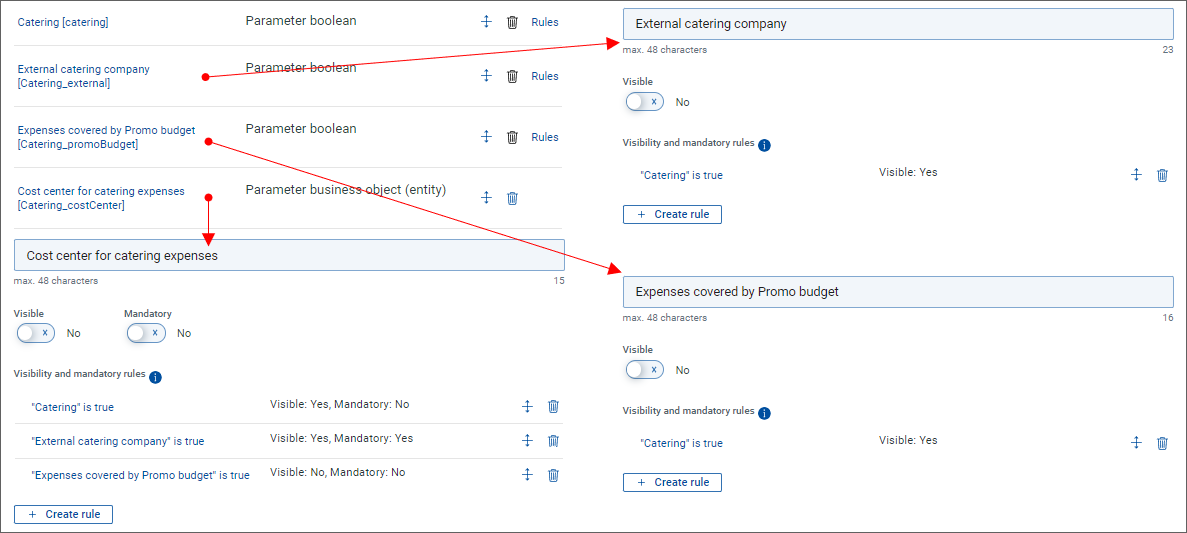
The above described behavior is achieved in the following way:
A visibility rule triggered by the check box is created for all three additional catering-related attributes.
Two more rules are created for the cost center attribute:
A rule making the cost center field mandatory when the external company check box is selected
A rule making the cost center field not visible and not mandatory when the special Promo funds check box is selected
See the image below for complete information.