Price in multiple currencies
Offer prices are always given in the Shop default currency - Euro. If the Shop is set up for use of additional currencies, one or more of these additional currencies can be enabled for individual offers. Pricing within such offers is then specified in multiple currencies.
Prerequisites:
The Shop needs to be set up for use of multiple currencies. Go to the Configuration section of Shop settings and
Set the Multiple currencies can be set for each offer setting to True.
Select one or more currencies in the Supported currencies setting. Note that only currencies registered in the USU Service Management application linked with the Shop are available for selection.
Beware of the consequences of removing an already used supported currency: if a currency is removed from the list of supported currencies, all currency values specified for this currency in the offers are irrevocably lost.
To enable the use of multiple currencies in an offer:
Open the offer in the edit mode of Offer detail,
Select one or more currencies in the Additional currencies dropdown. Selected currencies will get listed above the dropdown field.
Update the offer.
When the offer gets updated, price fields for the additional currencies are added to all price attributes within the offer and its components. As the newly added fields are empty, a red error message (preventing the offer from being saved) and/or a yellow warning message (warning you of an inconsistency without preventing saving) appears at the top of the editor. Follow instructions in the message to resolve the issue (see below for details).
Specifying prices in a multi-currency offer
With multiple currencies enabled in an offer, all its price attributes are provided in the default currency plus in each of the additional currencies. This applies both to the offer itself and all its components.
The following rules need to be observed:
Prices at the level of the offer itself are mandatory in all enabled currencies.
For a price-relevant offer, all prices in all currencies must be filled in. If price fields in any currency are left empty (e.g. after having enabled an additional currency for the offer), then a red error message is displayed at the top of the editor.
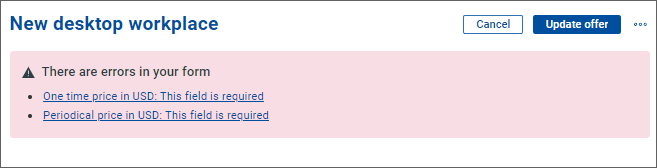
Click the errors listed in the message to navigate directly to the empty field and supply a value in the corresponding currency. The offer can be updated only after all listed fields have been filled in.
Prices at the level of offer components must be filled in all enabled currencies for the offer to be visible to users who have the Shop set up to use the currency. For example, an offer whose components have price fields in USD left empty will not be visible for a user with USD selected in their User settings/Preferences/Currency.
If price fields in any currency are left empty for any of the offer components, then a yellow warning message is displayed at the top of the editor.
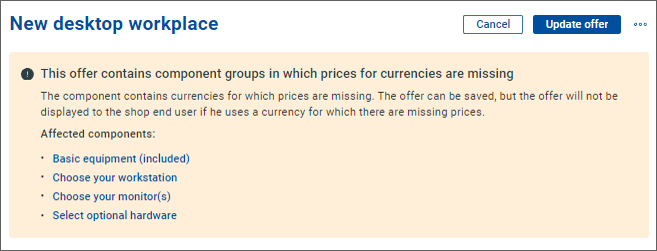
Click the links in the message to navigate to the component group containing the problem causing component(s) and fill in the price(s) in all enabled languages. Do this for all listed component groups to make sure that the offer will be visible in all enabled currencies.
To make the task easier, the top of each affected component group editor contains a yellow warning message listing all its problematic components; and the price fields with missing values are highlighted with the same yellow color.
Note: As seen above, currency-based visibility of the entire offer is conditioned by all its components being currency-visible. If you want to have only some components of an offer available in a specific currency, you need to create for the currency a copy of the offer containing only the desired subset of components.