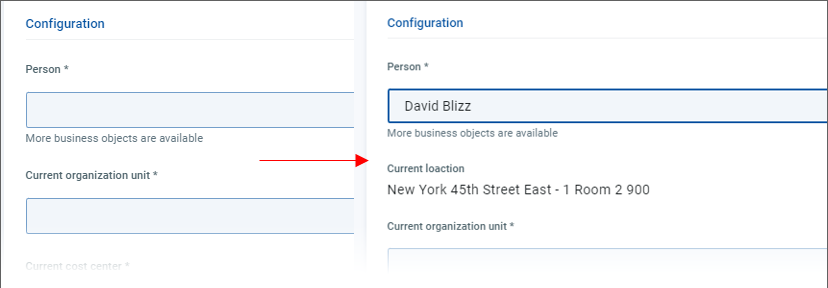
Usage example
Let's have our example offer automatically display the location of the person selected in a business object parameter. Additionally, the field for the location information should dynamically be made visible only if the Person parameter is not empty.
Create and configure the read-only attribute
Expand the Configuration elements section of the offer and click Create a configuration element.
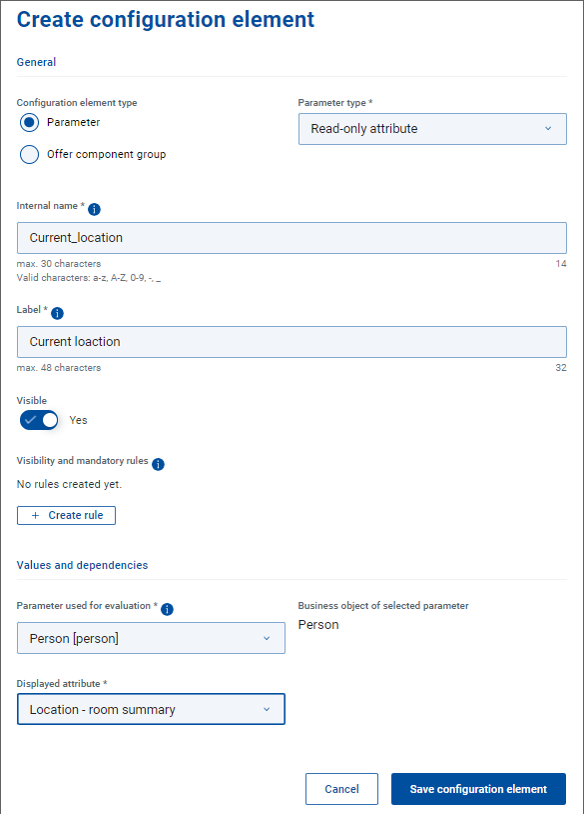
In the creation editor, select Configuration element type = , Parameter type = .
Fill in the Internal name and Label fields.
In the Values and dependencies section:
Select Parameter used for evaluation = (the Shop business object parameter whose attribute is to be displayed). The name of associated USM business object gets displayed on the right of the field.
Select Displayed attribute =
Click Save configuration element to finish the element creation.
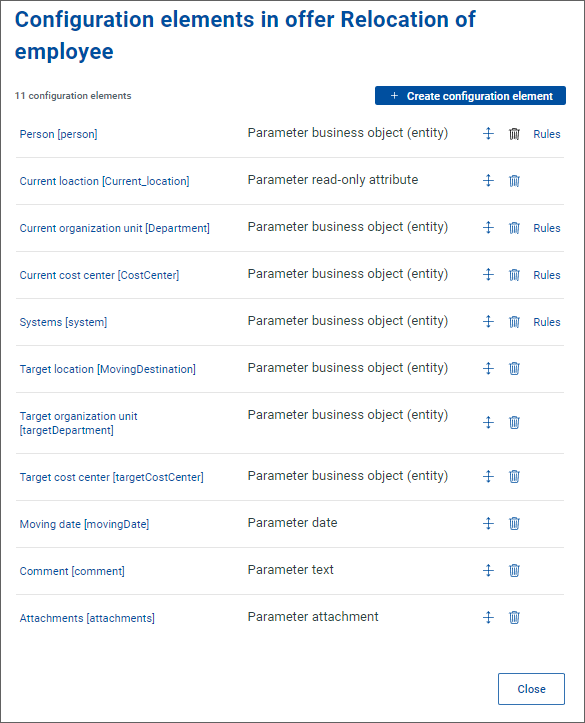
The newly created read-only attribute parameter will be placed at the end of the configuration elements list, You will probably want to drag it to a position adjacent to the parameter (as captured in the image below).
End user perspective
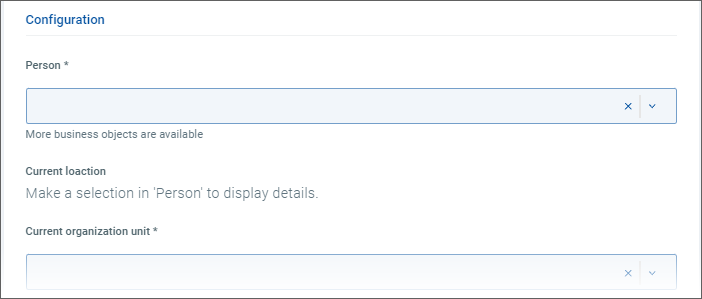
The Current location field displays the location as soon as a person is selected. Until then the field prompts the user to make the person selection.
Make the attribute conditionally visible
To streamline the user interface, you can hide the read-only attribute until a person is selected.
Open the read-only attribute for editing.
Set its Visible attribute to .
Click button Create rule under Visibility and mandatory rules. The rule creation editor opens.
Select Parameter that triggers the rule =
Choose Select the condition for Person = .
Set Target state for Current location to Visible = .
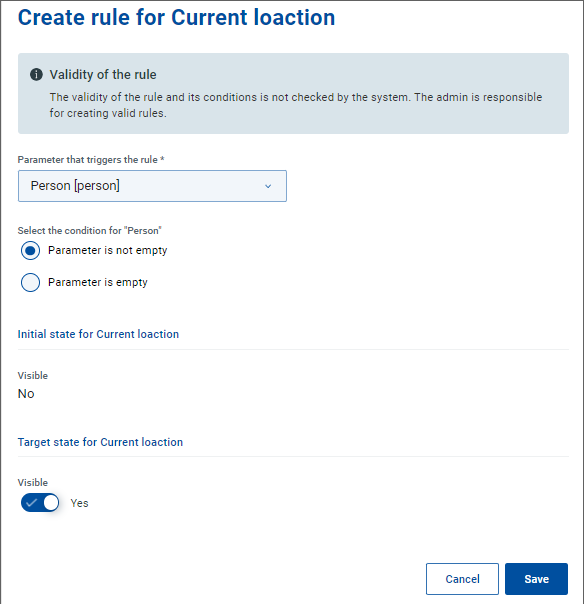
Save the changes and update the configuration element.
End user perspective
The current location information is now visible only when a person is selected.