Create a category
The action creates a blank category whose position needs to be manually specified by selecting categories in the parent category fields.
In the category tree tab, click the button.
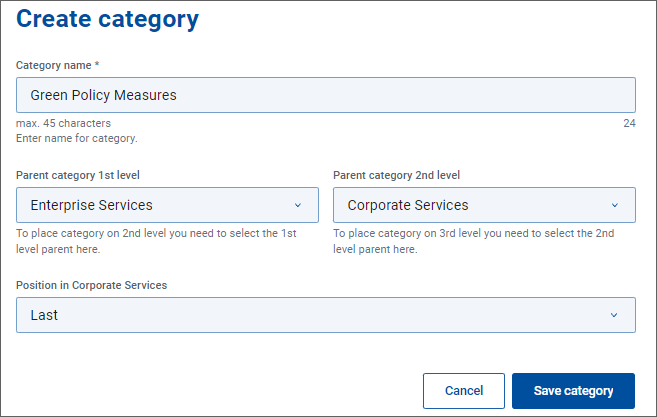
A Create category dialog opens - see example image below. In the dialog:
Specify . The name is mandatory.
In the example below, we are creating a category for facility services ensuring the company's environment friendliness and energy savings, calling it .
Specify position of the category in the category hierarchy. Proceed from the top level down.
To make the new category a top level category, select in the l field.
To make the new category a 2nd level category, select one of the existing 1st level categories in the field. Then select in the field.
To make the new category a 3rd level category, select one of the existing 1st level categories in the field, then select one of the offered 2nd level categories in the field.
The Green Policy Measures category in the example below is being placed under 2nd level category which falls under the 1st level category.
Use the field to specify the position of the category within its parent category.
In our example, we are keeping the default value.
Click to finish category creation.