Localize a category
It is possible to translate the values of category and offer attributes to the supported languages. For category, only attributes Name and Description (available if the category is set as Recommended) need to be translated (see here for reference).
Prerequisites:
Localization is possible only if the Shop has been deployed with more than one supported locales. (To check your deployed supported locales, go to the Language and currency page of Shop settings.)
These supported locales must also be defined for the Shop in the USU Localization Manager.
The USU Localization Manager is a tool which is used to centrally administer the localization of all USU applications. The translation of individual attributes is performed within this tool, the resulting data then synchronized and stored also in the Shop database. Thus the translations are also part of Shop data export/import.
To localize a category:
Locate the category in the category tree and select it. The category gets displayed in the detail tab on the right of the tree.
Category detail opens by default in the read mode. Stay in this mode.
Click the symbol at the right top of the detail tab and select .
A translations editor of the USU Localization Manager opens in a new browser tab, and you are redirected to this tab.
The translations editor displays all translatable attributes of the category.
Name - As a mandatory attribute, name will always be offered for translation.
Description - Description will be offered for translation only if the category is marked as Recommended and if the Description attribute is filled in (in the default language).
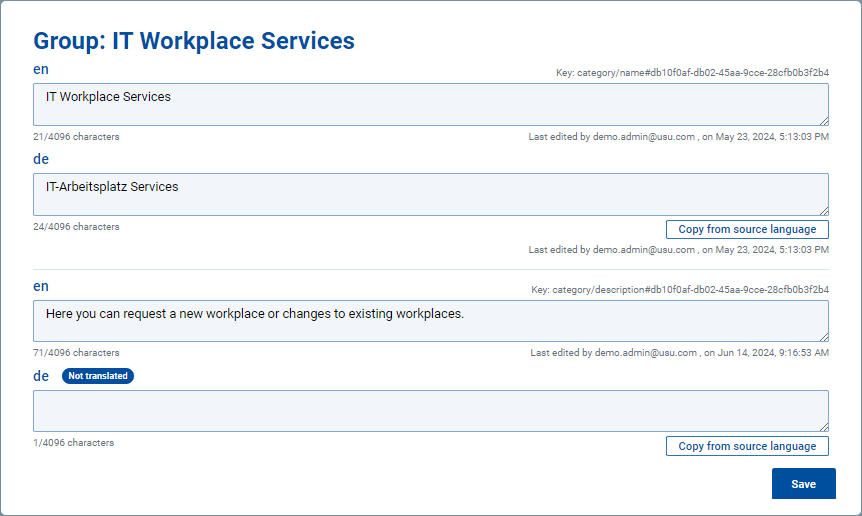
The translations editor for a group of translatable category attributes.
Note that the editor only allows localization of the category from which it has been called. To localize another category, call the editor again from the category's More actions <...> menu.
Specify translations for available attributes and languages.
Click Save to store the changes. A popup message will confirm that the translations have successfully been updated. You can close the browser tab.
Note: To leave without saving any changes, just close the browser tab.
Back in the Shop, you need to reload the page for the changes to take effect.
You are notified about the need to reload the page by a "New or changed translations" message temporarily displayed in the category detail tab.
Note that the message, which was triggered by calling the Translate category action, will be displayed until the Shop page is reloaded even if the translations editor has been closed without saving any changes.
The values of translatable attributes have been created for the category. They will be displayed when the user switches their Shop to the corresponding language. Translatable attributes whose value has not been translated will display value in the default language.