Category tree
Category tree displays all existing offer categories in their hierarchical structure.
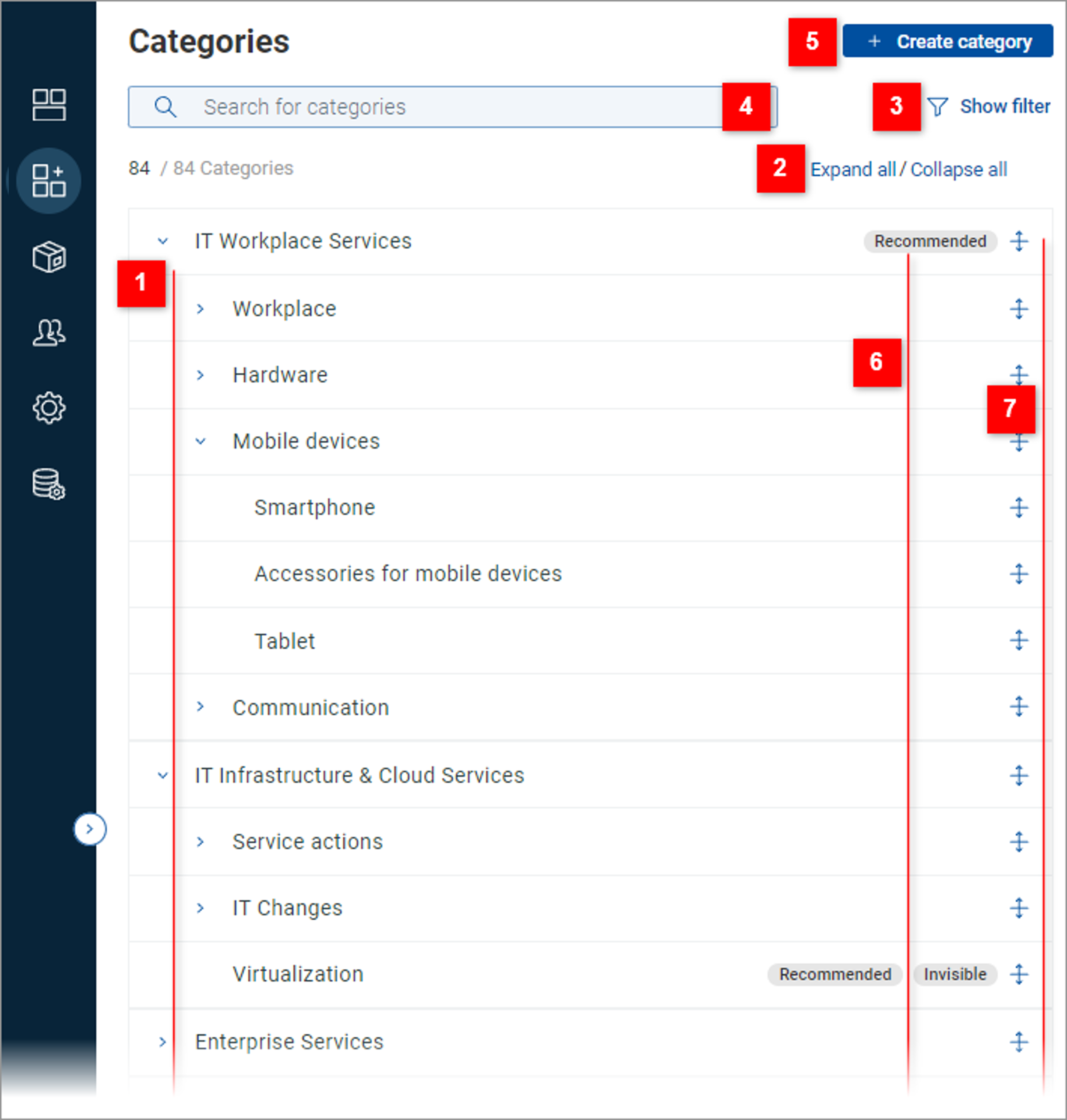
| The hierarchical category structure - top, 2nd and 3rd level categories. Use the expand/collapse arrows to expand/collapse individual top and 2nd level categories. |
| Use Expand all / Collapse all to bulk-expand or bulk-collapse all categories in the tree. |
| Click Show filter to open the Filter categories dialog. Use the dialog to specify filtering of categories. |
| Field for searching of categories - see topic Find existing categories |
| Use the button to create a new category. The action by default creates a blank 1st level category and opens it in where its position needs to be specified using the and fields. Note that it is also possible to directly create a new subcategory of a selected 1st or 2nd level category. |
| Use the status column to see which categories will be visible to the end user. Three possibilities exist:
|
| Use the reorder icons to change the order of categories. Note that categories can only be reordered on the same level and within their common parent category. |


Operations in the filtered state of Category tree
If searching or filtering is applied in the Category tree, the tree structure changes into a linear list and corresponding controls are provided.
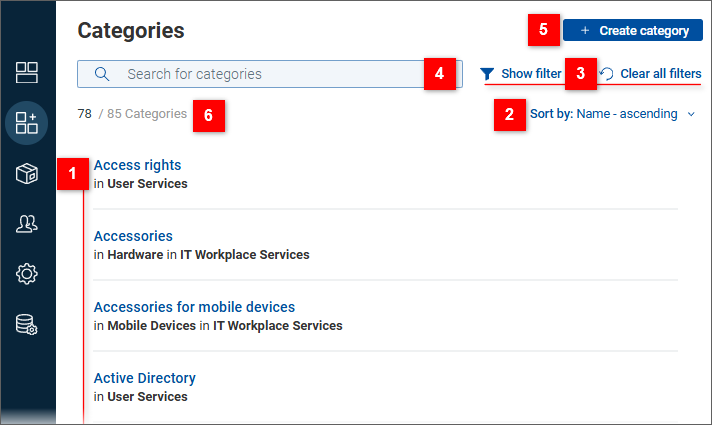
| Categories are displayed as a list. |
| The list can be sorted by category name (ascending, descending). |
| Filter controls - if only filtering is applied (as captured in the screenshot above):
Filter controls - if both filtering and searching are applied:
|
| Field for searching of categories - see topic Find existing categories |
| Use the button to create a new category. |
| Categories count displays a ratio: number of categories fulfilling the search-filter criteria / total number of categories |