Search
Searching in the Shop can be performed at two levels of detail - in the Search overlay and in the Search results page.
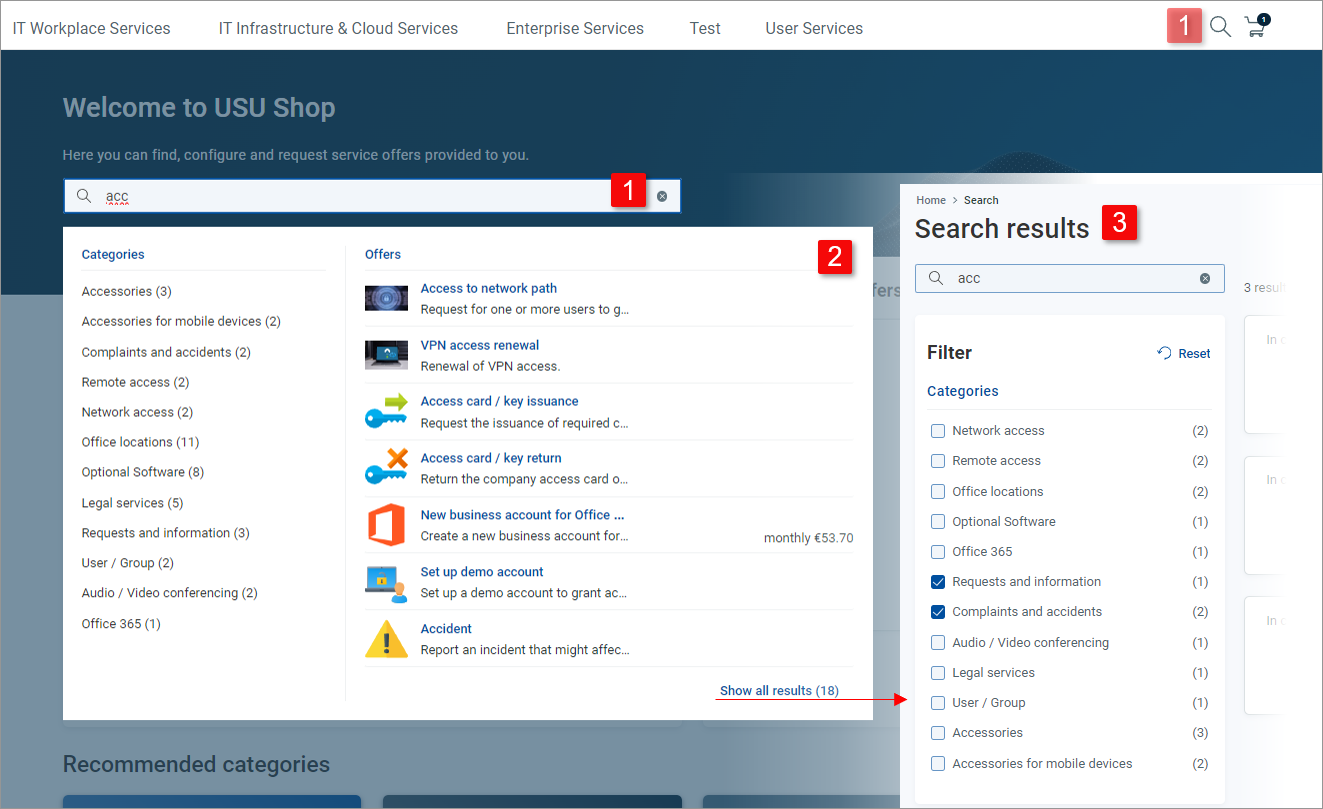
| Search can always be initiated by clicking the |
| The Search overlay with a search field at the top opens. Use it for fast searching. Click anywhere outside the Search overlay to quit searching and return to the previously displayed page. |
| Use the Search results page to see all search results with additional filtering possibilities. To open the page, press or click in the Search overlay. To quit searching, just navigate to a different part of the Shop using breadcrumbs at the top of the page, the Navigation menu bar or the in the main toolbar. |


If enabled by customization, homepage Welcome section may contain a search field ready for immediate use. Type at least 3 characters to start searching and proceed as described in the Search overlay topic.
When you initiate search (by clicking the  icon or typing in the Welcome section search field), the Search overlay gets displayed. Use it for fast searching.
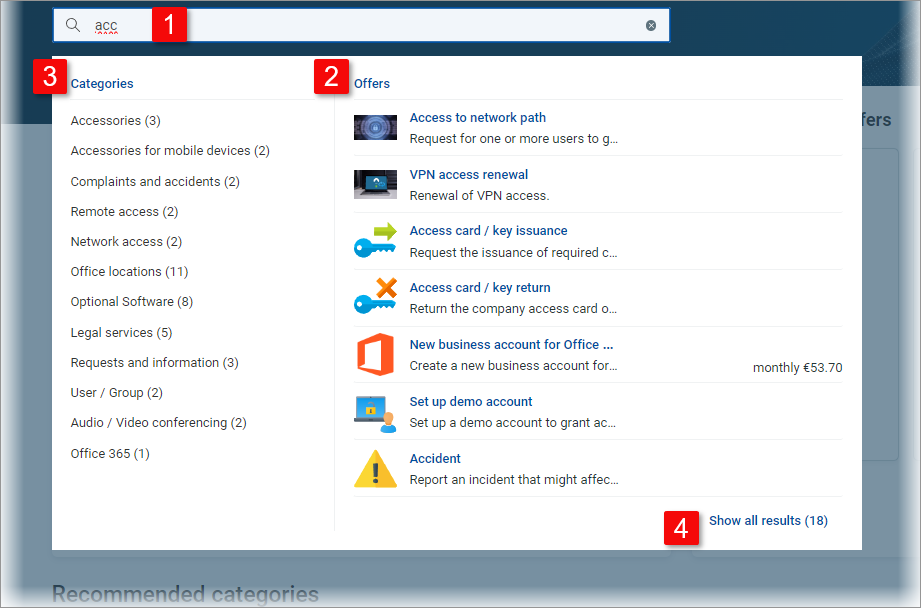
| Start typing in the search field at the top of the overlay. Search results get displayed as soon as you type at least three characters. Type as many characters as necessary to specify the search. 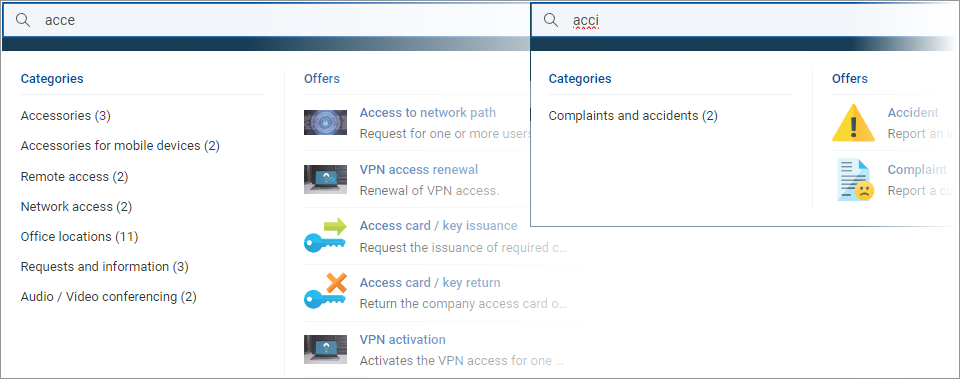 Starting search from the Welcome section takes you directly to step 2. |
| The section displays a maximum of 7 most relevant offers corresponding to the current search input. Clicking an offer in the section opens the offer in the Offer detail page where it can be further specified and requested. |
| The section displays categories relevant for the current search input. Namely, categories where
Clicking a category in the section opens a category page listing all offers in the category. Use this to browse for offers similar to the searched one. |
| Click to open the Search results page displaying all search results and providing additional filtering and display possibilities. Use this to perform a more complex search. |

The Search results page displays all offers fitting the search initiated in the search overlay. Use it to get the best overview of the search results and to fine-tune your search by additional sorting and filtering.
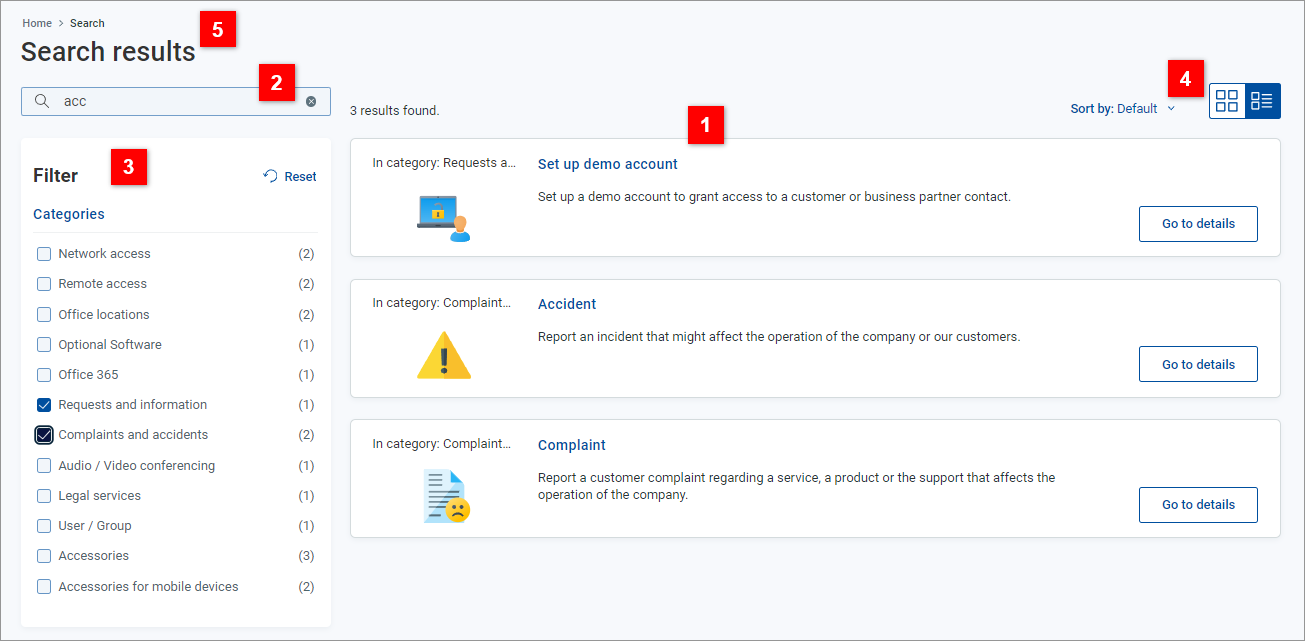
| The main section lists all search results fulfilling the current search input.
|
| The field on the left can be used to further specify the search.
|
| The section on the left lists all categories in which at least one relevant offer has been found.
|
| Use the tools above the search results on the right to tailor the list to your needs.
|
| at the top of the window are used for navigation. In this window:
|
