Admin dashboard
Admin dashboard is the administrator's information hub. It serves as a homepage of the administration client. You can always switch to the dashboard by clicking the USU logo at the left of the toolbar.
Main sections
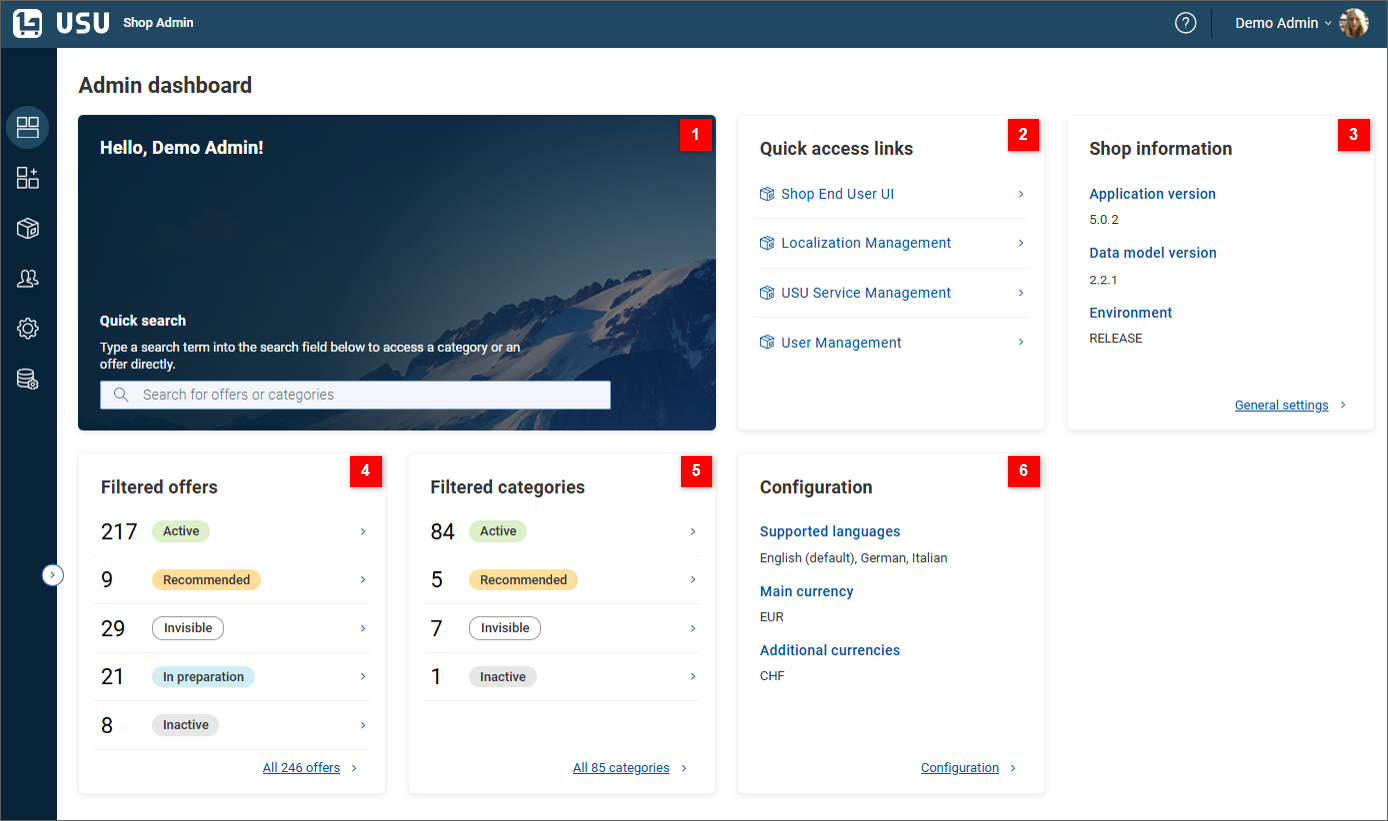
| Quick search | The Quick search widget welcomes you to the Shop administration client. More importantly, it provides a quick search field which can be used as an express entry point to category or offer administration. Start typing in the search field and available categories and offers whose name contains the typed string appear in a dynamic drop down below. Click the offer/category to switch to the corresponding administration mode with the offer/category opened for editing. Note that the background image of the widget corresponds to the background image used for the end user welcome section. If you administer more than one Shop instance, this feature may provide an immediate visual clue of which instance you are currently working on. If welcome section is disabled for the End User Shop, Quick search shows a default background image. |
| Quick access links | Use the links in this widget to quickly access other tools related to Shop administration. Namely:
Note that you may need to arrange for permissions to access all of these tools. |
| Shop information | Read only widget displaying basic technical information (application version, data model version, environment label). You can use the General settings link at the bottom of the widget to access more information (and customize some of it). |
| Filtered offers | Quick access to the offer list already pre-filtered according to potentially useful criteria. Click one of the links to open the filtered offer list. The predefined filter can then be freely modified. You can also use the link at the bottom of the widget to open the full offer list. |
| Filtered categories | Quick access to a list of categories already pre-filtered according to potentially useful criteria. Click one of the links to open the filtered category list. The predefined filter can then be freely modified. You can also use the link at the bottom of the widget to open the standard, unfiltered category tree. |
| Configuration | Read only widget displaying the current language and currency settings (supported languages, main currency, additional currencies). You can use the link at the bottom of the widget to open the Language and currency settings page. |


