Create/Edit component groups
This topic describes creation and editing of configuration elements of the component group type.
Starting points:
Click button in the expandable section to open the Create configuration element dialog. Select as Configuration element type.
Click a configuration element of offer component type in the expandable section to open the group for editing in the Edit configuration element dialog.
Specify or edit component group attributes
If you are creating a new component group, note that offer components can only be added after and have been specified and the group saved. Specify the two attributes and:
Click to save the changes and close the dialog.
Click to save the changes and keep the dialog open for further work.
General attributes
General attributes are "wrapper" attributes of the group itself.
Offer component group type | Group type determines (together with single/multiple option selection) the selection logic of the group and, consequently, also its visual representation. See the Component groups topic for more information.
|
Internal name | Internal name of the configuration element used as element identification in the fulfillment process. Must be unique within the offer. Invisible to the end user. Note that internal name can consist only of the following characters: a-z, A-Z, 0-9, _ and - |
Label | Group label displayed to the end user. |
Visible | Visibility flag. Set to to make the group visible to the end user. Relevant only for Optional component group. |
Visibility and mandatory rules | Use this section to create and administer rules which define how visibility of the component group depends on other elements in the offer.
See the Conditional visibility of elements topic for detailed information and examples of use. |
Offer components
Use the section of the Edit/Create configuration element dialog to administer group options.
Multiple selection allowed | Single/multiple selection determines (together with offer component group type) the selection logic of the group and, consequently, also its visual representation. See the Component groups topic for more information. |
Offer components list | Listing of individual options in the group. Options can be reordered and deleted. Click an option to open it for editing. |
Create component | Click to add a new option to the group. |
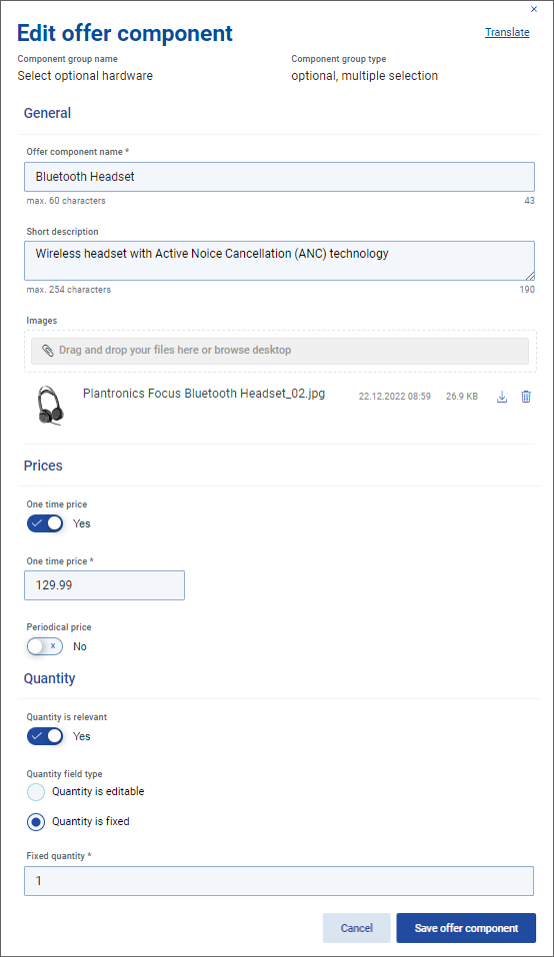
Create/Edit component
Clicking the button or clicking an option in the list opens the Create/ Edit offer component dialog. Use it specify (new) options for the group.
Each option can be seen as a miniature "offer within offer". The following attributes are available:
Offer component name | Specify option name (mandatory). |
Short description | Add a textual description of the option. |
Images | Upload an image to visually represent the option. Only one image is allowed for an option. |
Prices | Specify option price. Both and are supported in the same way as for the entire offer. |
Quantity | Specify option quantity. An option can be without quantity ( = ), with a or with by the user. For editable quantity, the same attributes as for offer quantity are available - see point 5 in the Set up quantity topic. |
Textual attributes of offer groups and components can be translated. See the Localize configuration elements topic for more information.